Friday, April 6, 2012

DPM reporting fails (after server reinstall)

Reinstallation of DPM with the same server name and database. For instance in the case of hardware replacement. Could lead to failing reports on the DPM server.

Error

An error occurred during client rendering.

An error has occurred during report processing. (rsProcessingAborted)

Cannot create a connection to data source 'DLS'. (rsErrorOpeningConnection)

Cannot open database "DPMDB" requested by the login. The login failed. Login failed for user ‘%servername%\DPMR$%servername%.

Cause
After recovery of the DPM server to new hardware. The account ‘%servername%\DPMR$%servername%. doesn’t have the correct mappings for the DPM database.

image

Solution

  1. Connect to the MSDPM2010 instance using SQL management dtudio
  2. Expand Security then expand Logins; right-click %servername%\DPMDBReaders$%servername% and select properties
  3. Select User Mapping in the left pane; in the upper right pane, under "Users mapped to this login:" verify DPMDB is selected; In lower right pane, ensure db_datareader and public are both selected; click OK

image

  • An error has occurred during report processing. (rsProcessingAborted)
    • Cannot impersonate user for data source 'DPMReporterDataSource'. (rsErrorImpersonatingUser)
      • Log on failed. Ensure the user name and password are correct. (rsLogonFailed)
        • Logon failure: the user has not been granted the requested logon type at this computer

To resolve this error, you must ensure that the DPMReport account has the Allow log on locally user right.

To assign the Allow log on locally user right to the DPMReport account:

  1. In Administrative Tools, open Local Security Policy.

  2. Under Security Settings, expand Local Policies, and then click User Rights Management.

  3. In the details pane, right-click Allow log on locally and then right-click Properties.

  4. In the Allow log on locally Properties dialog box, click Add User or Group.

  5. In the Select Users, Computers, or Groups dialog box, click Locations, click the name of the DPM server, and then click OK.

  6. In the Select Users, Computers, or Groups dialog box, enter DPMReport, and then click OK.

  7. In the Allow log on locally Properties dialog box, click OK.

  8. In the details pane, right-click Deny log on locally and then right-click Properties.

  9. If the DPMReport account is listed, select DPMReport and then click Remove

Tuesday, April 3, 2012

Microsoft Online Backup Service

With the release of Windows 8, Microsoft will launch a new online backup service. Code name Cloud Base Windows Backup. The new cloud based service for Windows Server “8”, which backs up your server’s files and folders to the cloud.

Windows Server “8” uses the downloadable Microsoft Online Backup Agent Windows Server Backup interface to offer this service..

Most important features

Feature Description
Simple configuration and management Microsoft Online Backup Service integrates with the  Windows Server Backup utility. Which provides a familiar interface.
Block level incremental backups Just like DPM, MS online backup is offering block level incremental. Only the changed blocks need to be replicated
Data compression, encryption and throttling The Microsoft Online Backup Agent ensures that data is compressed and encrypted on the server before being sent to the Microsoft Online Backup. Data is always stored encrypted in the cloud.
Data integrity is verified in the cloud. Automatically checked for integrity once the backup is done
Configurable retention policies for storing data in the cloud The retention range for the data can be configured from the client or by PowerShell.

Application data support
According to the information available this service offers only protection for files and folders. There is no support for application data yet. Therefore this is not a solution for Active directory, Exchange, SQL or Sharepoint backups.

Steps to get started

  • First step is to register and create a passphrase to encrypt the backups from the server
  • Set backup schedule. What should be in the backup, when should the backup run, for how long should the data be available?
  • Start the backup. This can be done manual or by the set schedule.

All above options are also available using Powershell

Recovering data
To recover data use the Microsoft Online Backup Service feature. As part of the Recover Data Wizard, you can choose the volume from where data needs to be restored and the date and time of the data to be restored.

Integration with System Center Data Protection Manager
The current release has no integration with SCDPM. Microsoft does not offer cloud storage for DPM.

Beta sign-up
You can sign up for the beta at: http://connect.microsoft.com/onlinebackup

Read more at Source:

Monday, April 2, 2012

System Center 2012 (Data Protection Manager) released

The System Center 2012 suite released and available for download today.

The suite will be officially announced at the Microsoft Management Summit on April 18th NZ time

This includes Virtual Machine Manager, App Controller, Operations Manager, Configuration Manager, Service Manager, Data Protection Manager, and Orchestrator, and all can be installed with the new Unified Installer.

image

If you have access to the Volume Licensing portal, TechNet subscriptions etc. the Suite should be available now for you to download.

Source: http://blogs.technet.com/b/nmercer/

Tuesday, March 13, 2012

System Center 2012 DPM Central Console in action

Introduction
The manageability is something that Microsoft has paid extra attention to in the new version of DPM. In the previous versions local logon was needed for all GUI based management. Especially in environments with multiple DPM servers this is pretty inefficient. To change this Microsoft has introduced the Central console in to DPM 2012. The cool thing about this is that the DPM central console is built on top of the System Center Operations Manager console. Many admins are using this console already to monitor their environment and now can use it for DPM administration as well.

Installation
For demo we use System center 2012 Operations Manager. During RTM this option will also be available for SCOM 2007 R2.

Before we can start the installation we need to import the DPM Management pack to Operations Manager.

  • Microsoft.SystemCenter.DataProtectionManager.2011.Discovery.mp
  • Microsoft.SystemCenter.DataProtectionManager.2011.Library.mp

When completed we logon to the Operations Manager management server and start the setup from the DPM2012 media. Then select the DPM Central Console.
In the next screens we accept the license agreement and the setup starts.clip_image001

In this case we install the central console server-side and client-side on the same server. This way we can start the central console directly from the management server. You can also install the DPM Central-client side on a workstation (with the Operations console installed) for remote administration.clip_image003

The setup will also install the DPM remote console and the DPM Management shell.
The installation is now completed

Start Central Console
The DPM Central console is integrated to the Operations Manager console. Start Operations Manager to work with the central console. The screen below provides an overview of all the options.

image

At first it looks like a normal management pack. But the power of the new DPM management pack comes from the integration with the DPM remote console. This allows you to take direct action. Let’s take it to the test.

First we select monitoring (A) section in the console.

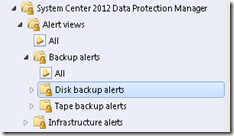
Alert View (B)
The alert view provides an overview of all DPM related alerts and also an overview per category.

The Backup Alerts contains all alerts related to backup issues like recovery point creation, replica synchronization, disk backup and tape backup alerts.

The Infrastructure Alerts folder shows alerts about the DPM Infrastructure, like Disk Infrastructure, Protected computers and the Tape infrastructure.
image

For this example we take a disk backup related alert. The message below shows that the allocated disk space for recovery points is not sufficient anymore. When this happened in the past you would need to logon to the affected DPM server and modify the disk space locally.
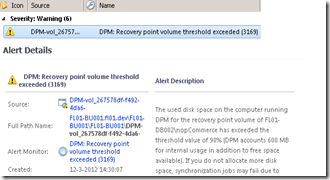
image

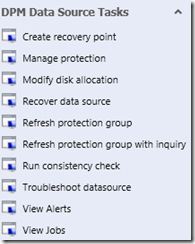
With the central console you can take direct action from the Operations Manager console using the Action Task panel (F) and the DPM tasks (G).
For this alert we select Take recommended action.
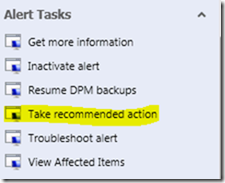
image

It will open the modify disk allocation screen. Here we can adjust the disk allocation directly from the central console. We enter the correct values for the replica and recovery point volume.image
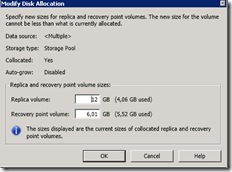
And the action is in progress…..
image

After a few seconds the action is complete. Without the need to logon to the DPM server.image

State view (C)
The State view shows the health state per component. You can view the status of the DPM servers, Protected servers, Portion groups, Disk or Tape drives
image

In the example below we select the status of the Protect machines. This provides you with a single interface on the DPM protection status of all servers in your environment. Again there is no reason to logon to the local DPM servers. This will be available for all you DPM 2010 and DPM 2012 servers.
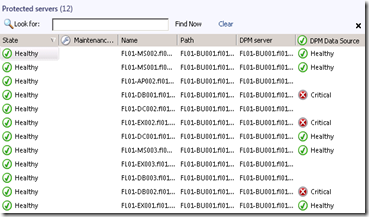
image

Scope Console
A scoped DPM console is a remote DPM console which only shows alerts and actions related to the selected protected machine.
We select troubleshoot protected server in the action panel to open the scoped console.
image

The console shows now only the options and alerts related to this protected machine
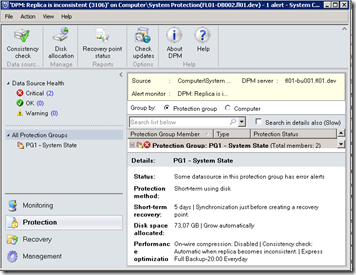
image

Other Tasks available in the Central console
Some of the other available tasks you can perform using the Central console

  • Resume tape or disk backup after a failure.
  • Run Consistency Check on a protection
  • Create a recovery point
  • Inventory tape library

image

Conclusion
The new central console for DPM adds the much needed single managed interface to DPM. Especially for environment with multiple DPM servers this is a welcome added feature. It is also a next step in the integration of the System center products to a suit.

More info
This video DPM 2012 – Centralized Management : Troubleshooting using Scoped DPM Console shows how you can use the Troubleshooting Experience from the Central Console to isolate a failure and related backup jobs, backup items and servers from your overall backup environment.

Sunday, March 11, 2012

System Center (DPM) 2012 CTP for Windows Server "8" Beta support

The CTP enables the Data Protection Manager component's repository and agents to run on Windows Server ‘8” as well as providing protection in Windows Server “8” environments. The CTP also adds protection for new features in Windows Server “8”:

image

  • Hyper-V Virtual Machines on Cluster Shared Volumes 2.0 (CSV2.0)
  • Hyper-V Virtual Machines on remote SMB share
  • Files on De-Duplicated Volumes

More and download here

Monday, March 5, 2012

Monday, February 20, 2012

Data Protection Manager 2010 Overview Poster

The Data Protection Manager (DPM) 2010 Overview poster was made to give an overview and quick reference to DPM's components, architecture, and DPM protection scenarios. It consists of system requirements, licensing, architecture, supported workloads, storage types, design quest.

image

Authors:

Yegor Statsev Microsoft DPM MVP
Sean O Farrell www.seanofarrelll.blogspot.com
Steve Buchanan www.buchatech.com

Download: http://gallery.technet.microsoft.com/Data-Protection-Manager-e1835980
Source: http://blogs.technet.com/