Introduction
In my experience most restore requests are from users that accidentally deleted a file or replaced a good copy of a file by a bad copy. For a backup administrator this is a time consuming business. Wouldn’t it be nice if users could take care of these restores themself.
DPM allows users to restore their own files from the file server without the help of the backup administrator. This option is called End User Recovery (EUR)
Enabling users to recover previous versions of documents isn’t totally new – actually it is part of the technology build in to Windows 2003, called Shadow copy of shared folders.
The big difference is that that the copies no longer need to be stored on the file server itself, but that users are redirected to the DPM server. The beauty of this all is that it is totally transparent to the users. Users can restore copies of their own files for as long as you configured short-term disk protection.
How to enable EUR for DPM
| Description | Example |
| For EUR is a schema change required.
Make sure your account has the correct premisisons. | Domain admin + Schema admin permissions |
| To install the necessary Schema extension log onto the Domain Controller that holds the Schema master role and then create a drive mapping to the DPM installation directory on the DPM server, C:\program files\Microsoft DPM\DPM\End User Recovery, and run the DPMADSchemaExtension.exe. | 
|
| Click on run. | 
|
| Click yes, to start the Schema extension. | 
|
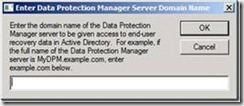
| Enter the DPM server name Note: this is not the FQDN name of the server, but just the server name. | 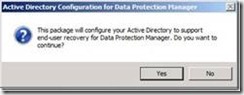
|
| Enter your domain name. This is the domain the DPM resides in. This should be the FQDN
| 
|
| This field can be left blank if the DPM server is in the same domain as the File server that you want to protect | 
|
| Click OK. | 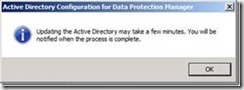
|
| Click OK. | 
|
| Logon to the DPM server and Select Configure end user recovery.
The Active Directory button should be greyed out now. | 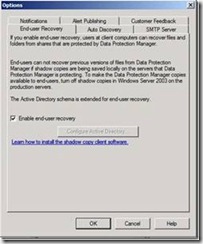
|
| EUR will be available to users after the next synchronization. | 
|
Set-up DPM protection Group
| The Retention Range and the File Recovery Point are important values when you set-up the Protection group for the file server. The Retention Range Value specifies how long versions of the users files are available for recovery. The File Recovery Point value specifies how many versions per day are created. Only when the file has been changed a new version is created. | 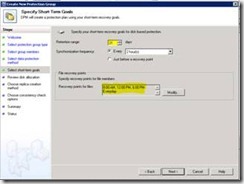
|
The Client
Windows Vista and Windows 7 Clients have the building functionality to use the DPM EUR as there prvious version point. For Windows XP clients to use End User Recovery a hotfix should be installed KB895536 describes the needed hotfix for the Shadow copy (Timewarp) client. Please also take a look at KB941133
Results
| The result is that users can choose to restore one of the previous versions of the document direct from their Explorer interface.
| 
|
DFS
In a DFS namespace, links can have multiple targets that contain replicated data. The file recovered by an end user may not be the expected file version, if you protect multiple DFS targets.
For example, the DFS namespace \\public\apps can connect users to the actual targets of \\public1\apps or \\public2\apps. If both targets are protected by DPM and the user attempts to recover a file from the DFS link, the Shadow Copy Client will display the shadow copy of the file from the first available protected target. If the targets are not synchronized at the time that the shadow copy is created, the user may recover an incorrect version of the file.
When you protect only one target of a DFS link and a user attempts to recover a file, the Shadow Copy Client will check the targets of the DFS link and connect the user to the protected target rather than the first available target.
(Taken from:http://technet.microsoft.com/en-us/library/cc161316.aspx)
Schema Change drill down
The DPMADSchemaExtension tool performs the following tasks to support end-user recovery:
- Extends the schema
- Creates a container (MS-ShareMapConfiguration)
- Grants the DPM server permissions to change the contents of the container
- Adds mappings between source shares and shares on the replicas
With ADSI you can check the attributes added by DPM.
Domain
CN=System
CN=MS-ShareMapConfiguration
|  |
(Taken form:
http://technet.microsoft.com/en-us/library/bb795762.aspx)
Limit Previous version Client
The previous version client can be very helpful to users and Administrators. But there is also the risk that users overwrite files that they should have.
To limit the risk you can restrict who has the ability to restore using a Group Policy or restrict to make a copy of a file and not overwrite.
Disable restore Button
This functionality prevents a client from overwriting the current version of a file with an earlier version of the file. The client can only copy the earlier version of a file to an alternative location.
To do this, type either of the following commands at the command prompt, and then press ENTER
REG ADD HKLM\Software\Microsoft\Windows\CurrentVersion\Explorer /v NoPreviousVersionsRestore /t REG_DWORD /d 1
REG ADD HKCU\Software\Microsoft\Windows\CurrentVersion\Explorer /v NoPreviousVersionsRestore /t REG_DWORD /d 1
You can add the DWORD registry entry as part of a user's logon script.
We recommend that you add the DWORD entry to the HKEY_LOCAL_MACHINE subkey. We recommend this for the following reasons:
• The HKEY_LOCAL_MACHINE subkey is not overwritten by policy updates.
• The HKEY_CURRENT_USER subkey can be written to by logon scripts that are using nonadministrator permissions.
Disable the Previous Versions tab
To disable the Previous Versions tab on individual client computers, follow these steps:
Type either of the following commands at the command prompt, and then press ENTER:
REG ADD HKLM\Software\Microsoft\Windows\CurrentVersion\Explorer /v NoPreviousVersionsPage /t REG_DWORD /d 1
REG ADD HKCU\Software\Microsoft\Windows\CurrentVersion\Explorer /v NoPreviousVersionsPage /t REG_DWORD /d 1
(Source Technet Form answer by
Mike Jacquet)
Related links and information
· Microsoft Technet article about End-User Recovery Considerations
· On Scug.be about EUR when file server is down
· Matt Marlor about the power and risk of End User Recovery - DPM End User Recovery - Powerful but Dangerous?


