Showing posts with label Installation. Show all posts

Wednesday, November 30, 2011

DPM agent versions

DPM 2010

DPM 2010 3.0.7696.0
DPM 2010 role-up 1 (KB2250444) 3.0.7706.00
DPM 2010 role-up 2 (KB2465832) 3.0.7707.0

DPM 2007

DPM 2007 SP0 - 2.0.5820.0
DPM 2007 SP1 - 2.0.8793.0
DPM 2007 SP1 (with KB 968579) 2.0.8836.0
DPM 2007 SP1 (with KB970867) 2.0.8840.0
DPM 2007 SP1 (with KB970867 Revision: 1.0) 2.0.8851.0
DPM 2007 SP1 (with KB979970 ) 2.0.8864

Friday, September 17, 2010

Uninstall SQL 2005

After a successful upgrade from DPM 2007 to DPM 2010 you can safely remove the SQL 2005 instance. The steps are shown below. Steps are for a local instance of SQL.

image 
1) Start Program and features. Find SQL 2005 and select uninstall

image 
2) Select the MS$DPM2007$ instance, also select the Workstation Components and click next.

image
3) Check the confirmation window and click Finish.

image 
4) On Windows 2008 R2 you could receive the message “the program has known compatibility issues” Click Run Program.

image
5) When you receive the error. The following applications should be closed before continuing the installation.

image
6) Stop all related SQL 2005 services
-SQL server (MS$DPM2007$)
-SQL server agent (MS$DPM2007$)
-SQL server Reporting service MS$DPM2007$)

7) Press retry and the de-installation will complete

Saturday, May 22, 2010

DPM 2010 upgrade Advisor

Now that the final version is (nearly) available for download it time to plan the upgrade.

There are various versions of Operating system, SQL and DPM from which you can upgrade to DPM2010. These different versions also require different upgrade scenarios. The upgrade advisor developed by the Microsoft DPM team can help you with that. Enter your current configuration and the upgrade path will be displayed.

image


 Download link to the DPM 2010 Upgrade Advisor

Sunday, November 15, 2009

DPM tip of the day (1)

If your planning a new DPM 2007 implementation these days make sure you go for the x64 version on Windows 2008 or Windows 2008 R2.
Doing this your are ready for a in place upgrade to the next version DPM 2010. Data Protection manager 2010 will only come in a 64 bits version running on Windows 2008 or Windows 2008 R2.
The agents will still be available for 32 bits systems :-)

Friday, October 30, 2009

DPM 2010 and OCS front-end protection

Tom Pacyk wrote a post in 3 parts on protecting and recovering the OCS front-end server role with DPM 2010

Quote: “The goal of this series is to demonstrate how to recover your OCS Front-End’s RTC database in the event of a disaster where your database or disk hosting the RTC database has become corrupted. Or maybe you’ve recovered a server’s installation and configuration, but now need to recover the user information. I’m going to do this in 3 different parts: backing up, destroying, recovering.”

Your OCS Front-End and DPM 2010 Part 1- Backup
Your OCS Front-End and DPM 2010 Part 2- Destruction
Your OCS Front-End and DPM 2010 Part 3- Recovery

Link to Tom’s Blog: http://www.confusedamused.com/

Saturday, September 5, 2009

DPM 2007 Configuration Analyzer

DPM Configuration Analyzer is a diagnostic tool that verifies configuration settings on your Microsoft System Center Data Protection Manager 2007.

The DPM Configuration Analyzer (DPMCA) is a diagnostic tool you can use to evaluate important configuration settings on DPM 2007 servers. The tool scans hardware and software configurations of the DPM servers you specify, evaluates them against a set of predefined rules, and provides you with best practice suggestions that can make your DPM experience more optimal.

More on: http://www.microsoft.com/downloads/details.aspx?FamilyID=54b4bb57-d6e3-4c1e-a889-a24cfa18fcd4&displaylang=en#Instructions

Friday, July 10, 2009

Reporting does not work with DPM 2007 on Server 2008 x64

When Running Windows Server 2008 x64 with DPM 2007 x64 you can ‘run’ into the following issue. When clicking on the Reporting Tab the following message appears:

DPM could not connect to SQL Server Reporting Services server because of IIS connectivity issues.

On the computer on which the DPM database was created, restart the World Wide Web Publishing Service. On the Administrative Tools menu, select Services. Right-click World Wide Web Publishing Service, and then click Start.

ID: 3013

The solution is within IIS:

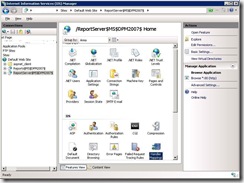
1. In IIS Manager, open the Sites folder, and then open the folder of the
Web site that contains the report server virtual directory.
2. Select the report server virtual directory .
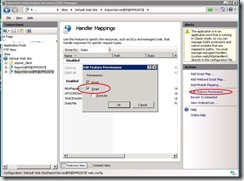
3. In the IIS area, open Handler mappings.
Report server_01 Report server_02


4. In the Actions pane, click Edit Feature Permissions.
5. Click Script.
6. Click OK

Thursday, June 18, 2009

Upgrade DPM integrated database to SP3

Microsoft has released Service Pack 3 for SQL2005. When running the Service Pack 1 for DPM2007 you can upgrade your integrated database to SP3 for SQL2005.
More info

Friday, June 12, 2009

DPM database could not be created

I ran into rare error message during a DPM setup today. The message stated that the DPM database could not be created. This is a more common error when using a remote database, but in this case I used the local instance.


Full error message:
The DPM database was not created.Use Add or Remove Programs in Control Panel to remove the DPM files and registry entries that were created during Setup. Verify that SQL Server is properly installed and that it is running, and then run Setup again. ID: 811

When checking the event log I found that the error is not directly related to the SQL installation. But the DPM services could not start.

Log Name:
SystemSource: Service Control Manager
Date: 12-6-2009 14:28:47
Event ID: 7001
Task Category: NoneLevel:
ErrorKeywords:
ClassicUser: N/A
Computer: xxxx
Description:The DPM service depends on the Virtual Disk service which failed to start because of the following error: The service cannot be started, either because it is disabled or because it has no enabled devices associated with it.


This event log message pointed me to the correct solution, due to security lock down of the machine, the Virtual disk services was set to disabled.


After setting the Virtual disk service to manual and restarting the installation, the installation completed successfully.

Tuesday, June 9, 2009

Removing the record of a formerly (death) protected server from DPM

The best way to remove a protected server from DPM is by uninstalling the agent from the server using the DPM Administrative Console. This way you make sure that the server is alsio removed from the Agents tab in the Administrative Console

In some cases it could happen that you removed a server without first uninstalling the agent from the server. The issue is then how to get the record of the dead server off of your DPM server by normal means since it does not exist anymore.

You can use the following steps:
  1. Remove all protection objects of this computer.
  2. On the DPM conslole, TAB Management - Agents
  3. Click on unintall.
  4. Give credentials required to unintall agent and DON'T close "Uninstall Agents" dialog box while uninstall is going one.
  5. Uninstall will fail and message box will pop-up asking you to Remove Server record from DPM database.
  6. Click yes on this dialog box and your decommissioned protected server will be removed from DPM.

Very important is that you do not close the unistall progress Window, if you do so you do not get the question to remove the server from the DPM database.

Tip: When the server still exists in DNS and running you can fool DPM by creating a faulty host ipaddress in your host file.

Monday, June 8, 2009

Which tape drives are supported

It’s a little bit hidden on the Microsoft webpage. But a full overview of tape-drives en libraries supported by DPM 2007 can be found here: http://technet.microsoft.com/en-gb/dpm/cc678583.aspx

Additionally for HP drives you find the support Matrix here: http://h18000.www1.hp.com/products/storageworks/ebs/matrix_archives.html

Saturday, June 6, 2009

Tape collocation

With DPM 2007 SP1 you can use Tape Collection or Tape media sharingso that multiple protection groups with similar tape retention periods can now share tapes. This enables you to have multiple recovery points from the same as well as different protection groups use the same tape.
To enable (from DPM management Shell): Set-DPMGlobalProperty -DpmServer -OptimizeTapeUsage $true
To disable(from DPM management Shell): Set-DPMGlobalProperty -DpmServer -OptimizeTapeUsage $false

Requirement: Protection group must have the same tape retention period configured.

Friday, June 5, 2009

Backing up local files on DPM

Starting with DPM 2007 SP1 it is possiable to backup the local files of the DPM server.To enable it you need a powershell command (DPM Management Shell):
Set-DPMGlobalProperty –AllowLocalDataProtection $true
To disable local data source protection, set AllowLocalDataProtection to $false.

Thursday, June 4, 2009

DPM agent install and Windows 2008 server Harding

When the server you try to install the DPM 2007 agent on is locked down by the Windows firewall, you could have a hard-time installing the DPM agent on the server.

In most of the cases when you try to push the agent from the DPM administrative console you get an error message that the Windows Firewall on the target machine is blocking the installation.Disabling the firewall rules for all adapters can solve this issue. Run the following command on the Target machine before pushing the agent:
netsh firewall set opmode disable

When the Security configuration wizard is used, it can be a little trickier
My experience is that you get the following error during pushing the agent from the DPM console:

Install protection agent on xxx failed:
Error 313: The agent operation failed because an error occurred while running the installation program on xxx.
Error details: Fatal error during installation (0x80070643)
Recommended action: Review the log files on xxx: [windir]\temp\msdpm*.log and take appropriate action. Retry the operation, and if the error persists, restart the computer and then retry the operation again.


But also local install will falll with this error:
Installing agent and configure for dpmserver =[xxx]
DPMAgentInstaller failed with errorcode =80070643, error says: Fatal error during installation.
Check log files in [WINDIR]Temp\MSDPM*.LOG
Press Enter key to close the window

Manual set DPM server wil also fail with error:
SetDpmServer failed with errorcode =80004005, error says: Unspecified error

The reason is that during the DPM agent installation some exceptions need to be made to the Windows firewall and with the Windows Security configuration Wizard.

The following workaround can be used:
  1. Logon to the target machine (from console – remote management card etc)
  2. Copy the installation files to a local temp directory
  3. Net stop mpssvc (will stop windows firewall services\will stop network connections)
  4. run the installation (for x64): DPMAgentInstaller_KB959605_AMD64.exe dpmservername.fqdn
  5. Reboot the target server
  6. Make a firewall rule that allows the application DPMRA to communicate(all profiles)
  7. On the DPM server, from the DPM Management Shell prompt, type Attach-ProductionServer.ps1 .