Tuesday, January 12, 2010

Webcast: Get Ready for Data Protection Manager (DPM) 2010 Release


The DPM 2010 beta is available since September, the Release Candidate is almost finished.

All about the new Release candidate in the webcast of January 14. Below the invitation by Jason Buffington |Senior Technical Product Manager – System Center.

Please join us this Thursday, January 14 at 9:00 AM Pacific US Time (18:00 CET) to see what is coming in the Release Candidate  We will demonstrate the pre-RC software that our early adopters have been running in production.  We’ll demonstrate the new Windows client protection capabilities, the new SQL/SharePoint/Exchange protection and recovery features, as well as the enhanced Disaster Recovery scenario.  We’ll also update you on our auto-healing/auto-scaling features, as well as a few surprises that weren’t in the beta.  Come join us to see what is coming in DPM 2010.

TechNet Webcast: Get Ready for Data Protection Manager (DPM) 2010 Release Candidate (Level 300)

Start Date:  Thursday, January 14, 2010 9:00 AM Pacific Time (US & Canada)

Duration:  90 Minutes

Audience(s):  IT Generalist

Click Here to Register for this week’s webcast

Wednesday, November 25, 2009

DPM 2010: Client Based Protection

During Teched 2009 in Berlin we where able to see and learn more on the next release of DPM. One of the features that Microsoft has put a lot of effort in is the client based protection.
In the 2007 release of DPM you could also protect clients, but that actually only works for “well connected” workstations. Machines switched off (or taken out of the network) will fail and flutter the DPM console with error messages.
The client based protection in DPM 2010 has been completely redesigned. With DPM 2010 clients are supported within the network, through VPN and even offline. Clients on the network or connected through VPN store their data on the DPM server. Restores can be done from the DPM server, using previous version in Explorer or the Office plug-in (image 10).
Clients offline, in an airplane for example, are also protected using a local back-up cache directory on their system. These clients can even do a restore when their on the road. When these clients connects to the network, the local cache is written to the DPM server. (local snapshots are not available on XP clients)
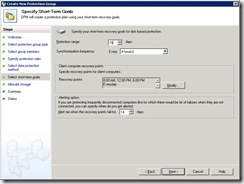
Offline clients will not generate loads of errors on the DPM server (like in DPM 2007) Only when a client has not connected to the DPM server for 14 days (default value\image 6) a warning will be displayed.

First step is to install the agent on the client, this process is a little different then for a server . You can use SCCM (System Center Configuration Manager) to install the agents, or do a manual installation. When the Windows Firewall is running you will need the tool SetDPMserver.exe to make the correct exclusions. You do not have to attach the agents in the DPM console like with other manual installations, this will be done automaticity when you create the protection group
Next step is to create a new protection group, the image below shows the option to create a server or a client based protection group. In this case we select the client bases protection group. 
clients
Image 1: Create new protection group

Now it’s time to select the members, the clients you will protected.
select members
Image 2: Select protection group members

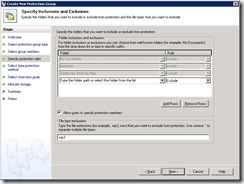
The DPM Administrator can select which data on the clients should be protected. This can be done on the Specify inclusions and Exclusions page. This is a rule base selection on volumes or folders, with the option include or exclude.  The DPM Administrator can also allow/deny the user to add additional folders to protect. Under File type exclusions specify the file types to exclude using file extensions.
select data
Image 3: Select files to include or exclude 

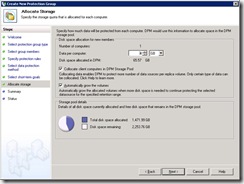
Protecting client computers can consume a lot of storage on your DPM server. Therefore you can limit the amount of disks available per protected client
select allocation 
Image 5: Specify storage space

In the screen below you specify the protection details. How long should data be kept on the DPM server, How often should data be replicated from the client to the DPM server, how many days can a client be disconnected before an alert is generated,
select retention
Image 6: Specify retention time

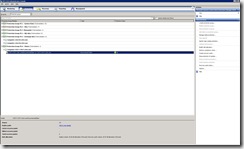
The DPM administrative console shows the protection status (from an administrative point of view)
protection overview
Image 7: Protection group status

On the Client computer a new icon is available in the notification area.  When activated with the mouse this icon shows the DPM synchronization status. The following information is showed when you click on the icon; the Summary tab allows users to check their protection status. How many files are protected, what is the current synchronization status, when was the last synchronization, when is the next.
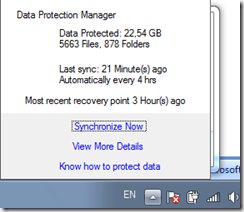
image image
Image 8: User GUI; protection status

The Protection items tab; When the Administrator allows it, the users can add additional directories to protect
 client_side_selection
Image 9: User GUI; specify additional directories

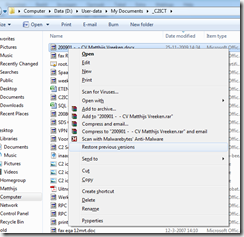
With DPM 2010 allows users to recover data items from client computers. Restores can be done directly from explorer, with the option Restore previous version.
image
Image 10: Previous version restore

The list will include files that are saved on the DPM server as well as local recovery points,
image
Image 11: Available previous versions

Specifications:

  • Support up-to a 1000 clients per DPM server
  • Support for Windows XP sp2*, Windows Vista and Windows 7
  • DPM supports the following VPN protocols (PPTP,SSTP,L2TP)

*The end-user restore feature is not enabled on Windows XP

Conclusion: Client protection in DPM 2010 gives administrators and users a lot of new options to protect their client data. to be continued

Enable End-User Recover in DPM fails

When you want to enable End-User Recovery on a DPM servers run Windows 2008, you will probably run into an error

To enable End_user recovery you should click on the recovery tab and then under actions  click on “Configure end-user recovery” and click Configure Active Directory"

This will result in an error: “Active Directory could not be configured because the Active Directory domain could not be found. Make sure that the domain name is properly constructed. The following example shows a properly constructed domain name: city.corp.company.com” 

image

The reason is the way the security of Windows 2008 is configured

The workaround is to use the DPMADSchemaExtension.exe tool, located in C:\program files\Microsoft DPM\DPM\End User Recovery. In order to run this tool logon to a domain controller map to the directory above and run DPMADSchemaExtension.exe.

  1. Enter Data Protection Manager Computer Name –> Enter here the DPM server name : Note: this is not the FQDN name of the server, but just the server name.
  2. Enter Data Protection Manager Server domain name –> Enter here your domain name. Note: This will be the FQDN domain name so if your domain is yourdomain.local enter yourdomain.local
  3. Enter Protected Computer Domain Name –> This field can be left blank if the DPM server is in the same domain as the Domain Controller that owns the Schema master role.
  4. Click OK on the next to Information screens
  5. On the DPM server open the DPM 2007 Administrative Console, select the recovery tab and then under actions  click on “Configure end-user recovery”  Notice that the configure active directory button is grayed out and that you can place a check mark in the “Enable end-user recovery” check mark button.
  6. You will get a warning telling you that you must wait for a synchronization to take place before the setting change takes effect. Click OK


The information in this post is taken from the source below (Keith Hill). I was only able to find the result in the Google cache therefore I recreated this document.

Source: http://209.85.229.132/search?q=cache:sOz_ZPThi7AJ:blogs.technet.com/askcore/archive/2008/06/29/dpm-how-to-enable-end-user-recovery-using-windows-2008-server.aspx+dpm+end+user+recovery+schema&cd=3&hl=en&ct=clnk&gl=nl

Tuesday, November 17, 2009

Disaster recovery using P2V and DPM

One of the interactive sessions on Teched Berlin was about Virtualization and Data Protection Manager. The disaster recovery section of the session had very interesting point of view on using P2V migration and DPM as a disaster recovery scenario. 

A fully virtualized environment will make a disaster recovery scenario a lot easier. You just backup/snap-shot the virtual machines (VHD files and configuration) and when your host dies you just restore them to another Hyper-V host and your back in business.

What about when you have still some physical machines in your environment?

You can use a Bare Metal restore (BMR), but there are some implications with it.

clip_image002

  • First of all you need to have sufficient physical hardware for this. This might not be a problem when you’re planning for a single server failure. This is most likely not an option when you’re planning for a larger (Datacenter) outage. In this case you should have a lot of server on stock just waiting for a failure to happen.
  • The second downside is that for a Bare Metal Restore you need to have, as much as possible, identical hardware. For older servers this might be challenging.
  • Last point is the recovery time needed when doing a BMR. BMR’s can be time consuming, time in which your users will experience a service interruption.

So what alternatives do we have?

Assuming you have also a virtual environment available,

Preparation  Steps

  • Make a Physical to Virtual Migration (P2V) of the machine you want to protect
  • Leave this guest turned off on the Hyper-V machine you migrated it to
  • Make daily data and system state backups of the physical server

You now have an offline virtual machine, with the correct drivers stand-by.

Recovery Steps

When the physical server fails you can activate the offline Virtual machine using the following steps

  • When the physical server is down; Start the Virtual –copy- of the machine
  • Restore the latest data using data protection manager to this virtual machine.

image

Notes:

  • Because of the use of the p2v tool, all correct drivers are on the virtual machine
  • The computer account of the virtual machine could be expired, in this case you need to reset the computer account
  • Make sure you know the local admin account and password of the machine
  • The start of the Virtual Machine could created as a SCOM recovery task
  • The restore of the data with DPM can be scripted with Powershell
  • You need to keep the system state of the physical machine, in case you want to go back to the physical server.

Based on the presentation Data Protection Manager and virtualization better together presentation during Tech-ed Berlin 2009.


Checks Mike’s post for more info an some interesting questions

Sunday, November 15, 2009

DPM tip of the day (1)

If your planning a new DPM 2007 implementation these days make sure you go for the x64 version on Windows 2008 or Windows 2008 R2.
Doing this your are ready for a in place upgrade to the next version DPM 2010. Data Protection manager 2010 will only come in a 64 bits version running on Windows 2008 or Windows 2008 R2.
The agents will still be available for 32 bits systems :-)

Thursday, November 12, 2009

DPM 2010: Release date

Nothing official yet, but during Teched in Berlin, we got estimated release date for The Release candidate and the RTM

image